v0.13

Find things faster, keep them in place

0.13 makes the places you use every day easier to navigate. Your work stays where you put it, and search can take you to the exact line you need.

find your way around

Home, Search, Pulse, and Connect now live in a slim rail on the left. Code spaces also show Tasks and Plugins there. This gives your conversations more room, while screens such as Pulse and Tasks can use the full window.

  • Pin what matters: Keep a workspace at the top of the sidebar until you're done with it.
  • Choose the order: Drag projects and workspaces where you want them. Mains remembers the arrangement when you come back.

search inside your files

The file explorer can now search file contents as well as names. Switch to Text, type a phrase, and see highlighted matches grouped by file. Use the arrow keys to move through results and Enter to open a match at its line.

You can match case, whole words, or a regular expression. Search respects .gitignore, so dependencies and build output stay out of the results.

make Mains yours

Choose a new Dock icon in Settings → Appearance → App icon. There are 40 options, from simple colors to gradients, and the change appears as soon as you pick one.

Add Project now brings cloning, creating, and opening an existing folder into one dialog. In Work and Chat, Project settings keeps the name, icon, and shared files together. Add a file there and chats in that project can use it from their next message, without changing the original.

give Codex clearer context

  • Point to a Mac app: Type @ in a Codex chat and choose an installed app alongside files and plugins. Codex then knows which app you mean.
  • Work with richer results: MCP Apps can expand to fill the window. File citations open in the editor, and generated images appear in the chat and deliverables even without a saved file.

You can also paste files and screenshots straight into the composer as attachments.

work side by side more safely

When two agents share a worktree, each turn's change card now shows only the files that turn touched. If both agents changed the same file, Mains marks it as shared and disables Undo for that turn, so reversing one agent's work cannot remove the other's changes.
v0.12

Run Mains without the desktop app

Mains no longer needs the desktop app to keep agents running. In 0.12, the same backend and web UI can run on a macOS or Linux machine, with your phone and browser connecting to it. The desktop app can connect over SSH too.

run Mains as a service

Install the server package with Node.js 22.12 or later, then start it:

npm install --global https://github.com/mainsdotdev/mains/releases/latest/download/mains-server.tgz
mains serve

The server uses the desktop app's data by default, so your workspaces, chats, and run history are already there. Only one backend can use that data at a time: close the desktop app before starting the server, or give the server its own data directory.

Use mains service install to keep it running without an open terminal. You can make it reachable on your local network or through Tailscale, then pair a phone or open the web UI from a browser.

make Mains look like yours

Settings → Appearance now offers 31 themes, with light and dark options. Pick one for the whole app or give each provider its own look. You can also adjust the accent, background, contrast, and UI and code fonts. Changes appear as you make them, without a reload.

sign in and browse with less friction

  • One-use browser login: A browser now signs in with a short-lived link instead of receiving the server's owner token. On the server, mains web creates a link when you need one.
  • Tabs stay with their chat: Switch conversations and the in-app browser brings back the tabs you had open for each one.
  • Files look like files: Images open as images in the editor, and the browser now has a right-click menu for links, images, and text.
v0.11

Mains is open source

Mains is now open source under the MIT license. This release also makes the work easier to see and get back to: answers can be interactive, search reaches across your runs, and a Mac window can become context for your next prompt.

answers you can interact with

  • Codex can show, not just tell: Ask for a chart, sortable table, or simulation and it can appear right in the transcript. Your choices in it are remembered when you return, and a control can suggest a follow-up prompt.
  • MCP Apps appear beside the work: When a connected tool provides its own interface, Mains shows it inside that tool's row. You can sign in to supported connectors from Mains.

Both features are available with Codex in this release.

find and bring in context

  • Search all your work: Press ⌘⌥K to find commands, workspaces, runs, and documents. A run can also be found by something said in its conversation.
  • Capture any window: Turn on Lens, then press ⌘⇧Space over another Mac app. Its frontmost window is attached to your next message, with readable text from that window when Accessibility is enabled.
  • Browse without losing your place: The in-app browser now has tabs, history, downloads, and a resizable device view for checking a page at different sizes.

Lens adds context to the composer; it does not send a prompt on its own.

stay close to the work

When an agent needs an answer or finishes a run, Mains can notify you. Simple approvals and questions can be answered from the notification or menu bar. After a turn, a change card shows the files it edited, a diff, and an Undo action when the changes can still be safely reversed.

The session panel also brings sources and deliverables together, and the document viewer can now open PDFs.

v0.10

Take your runs with you

Mains is on iPhone now. Your Mac still runs the agents and keeps your repositories; your phone gives you another way to follow the work and answer when an agent needs you.

pair your phone with your Mac

Open Settings → Relay on the Mac and scan the pairing QR code with the iPhone app. The Mac needs to be reachable over your local network or Tailscale. You can see paired phones in Settings and revoke access to any of them.

The phone keeps the last state it received, so you can still read your runs when the connection drops. It reconnects and catches up when your Mac is reachable again. Provider credentials and the files on your Mac stay there.

keep a run moving

  • Follow the work: Read the transcript, tool calls, progress, and images from your phone.
  • Send the next step: Start, continue, fork, or stop a run, and change its model or supported run settings.
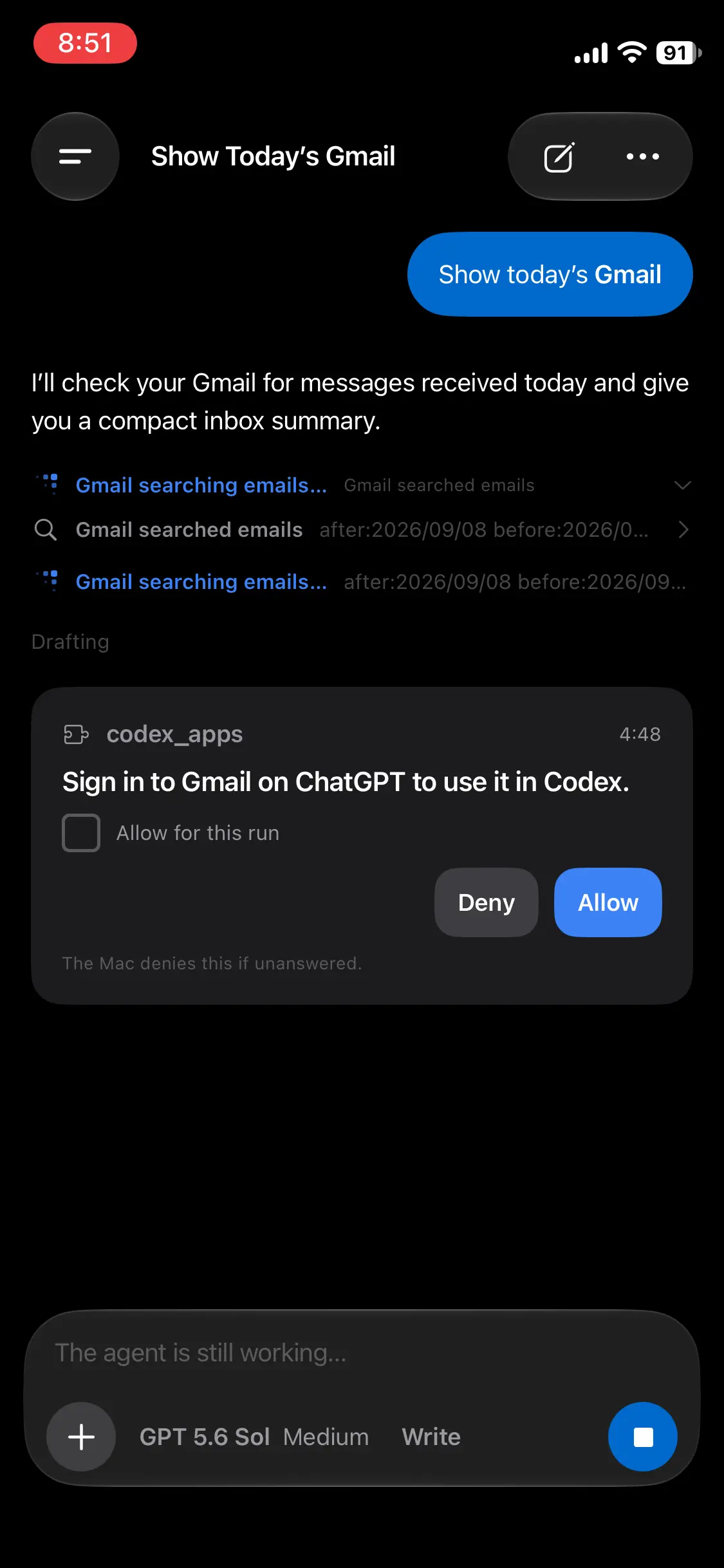
  • Answer a request: Allow or deny a tool call, or reply to a question the agent is waiting on.
An approval card on the phone with the tool input and allow or deny buttons

know what stays on the Mac

The phone is a companion, not a remote shell. It cannot browse files, use the terminal, view diffs, or run Git actions. There are no push notifications yet, so a request appears when you open the app. The iPhone app is available through TestFlight while it is in review; Android has not shipped yet.

Before a paired Mac sends prompts to an AI provider from your phone, the app asks for your consent. You can review or revoke that choice in Settings → AI Data Sharing.

v0.9

A space for code, work, or chat

Until now, every Mains space was built around a code repository. In 0.9, you can choose what a space is for. The app changes with that choice, and so do the tools the agent can use.

three modes for different jobs

  • Code keeps the familiar workspace: repositories, branches, diffs, and a terminal.
  • Work is for documents, reports, and other files. You still work with an agent, without the Git controls around it.
  • Chat is for conversations that can read but cannot change your files. That limit is enforced for the agent, not just hidden in the interface.

Choose a mode from the sidebar for each space. Work and Chat are available with Claude and Codex; Copilot and Cursor continue to use Code.

Work and Chat use collections instead of projects. Give a collection a name, add your chats, and attach files or pasted text as shared sources. New turns in those chats use the collection's current sources, so you can update the context as the work changes.

Scheduled pulses work here too. Work has templates for document digests and report drafts; Chat has read-only briefings and recaps. Neither needs a code workspace.

read the result in Mains

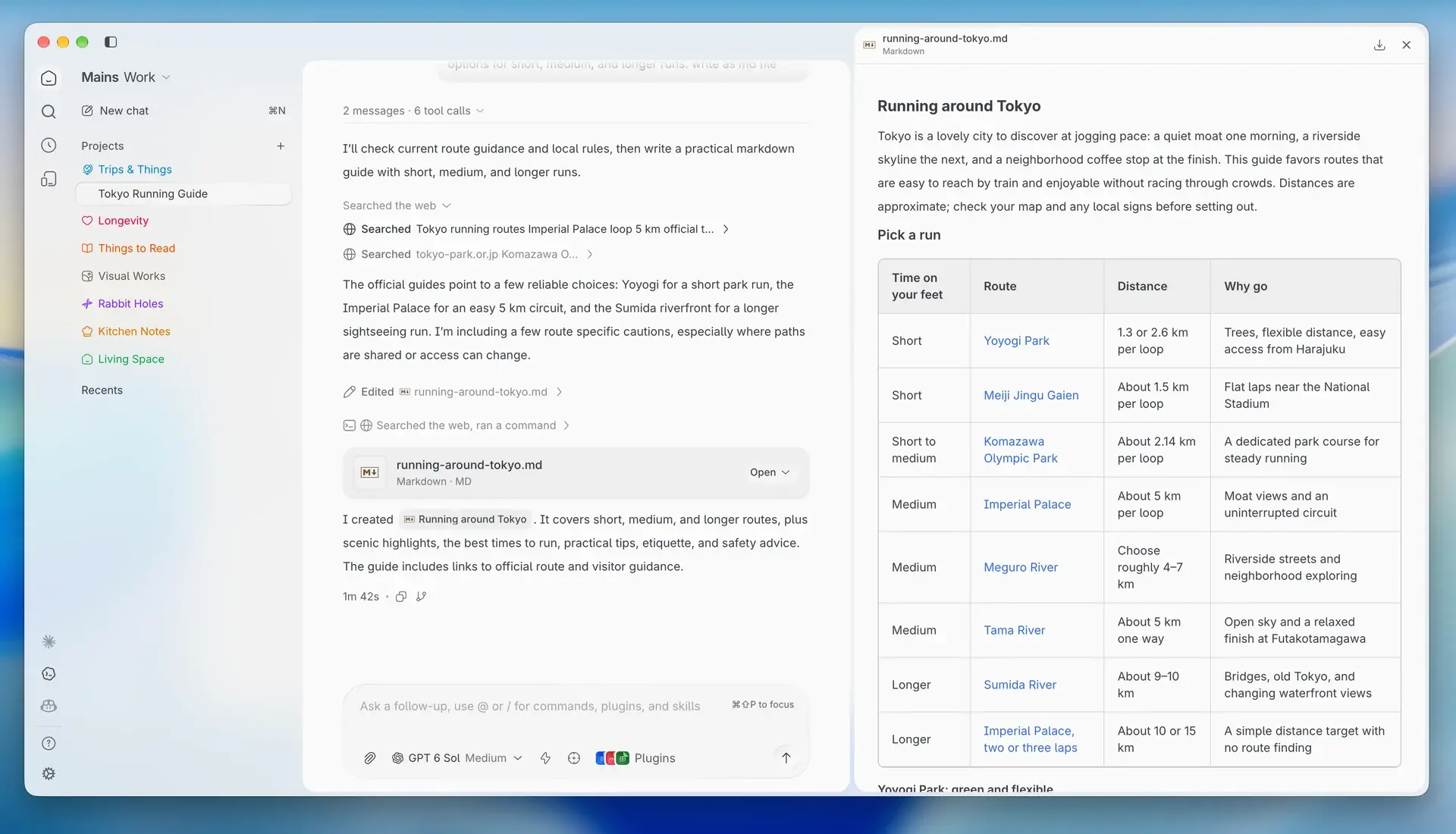
Open Word, Excel, PowerPoint, and Markdown files inside the app when an agent finishes them. You can check the result beside the conversation, then use Save a copy… to put the file where you want it.

A Markdown guide produced by the agent, rendered beside the conversation in Mains

keep Git decisions in your hands

Commits and pull requests now go through the Git actions panel, where you can review the diff before acting. An agent can still use the shell for Git when you explicitly ask it to. New installs start with worktrees off; if you already chose a worktree setting, it stays as it was.

v0.8

Keep your runs in sight

A run keeps working when you switch workspaces. With 0.8, you can still see what it's doing and get back to it in a click. We also filled in a few missing parts of the Git workflow and made the context meter easier to read.

runs stay in view

  • Keep an eye on background work: Runs in other workspaces now appear in a small dock in the sidebar. Each card shows its workspace, how long it has been running, and its latest activity.
  • Jump back or stop a run: Open a card to return to the session, or stop it there if the work has gone off track. The dock gets out of the way when there is nothing else running.

more of Git, in one panel

  • Pull incoming changes: The Git panel now shows how far behind your branch is and lets you pull when it can fast-forward. If it cannot, Mains shows why and leaves your work as it was.
  • Start a branch with your changes: Create a branch from the one you're on without losing uncommitted work.
  • Choose the PR base: Pick the branch your pull request targets. A generated description uses that same base, so it matches the diff you're reviewing.

understand your context window

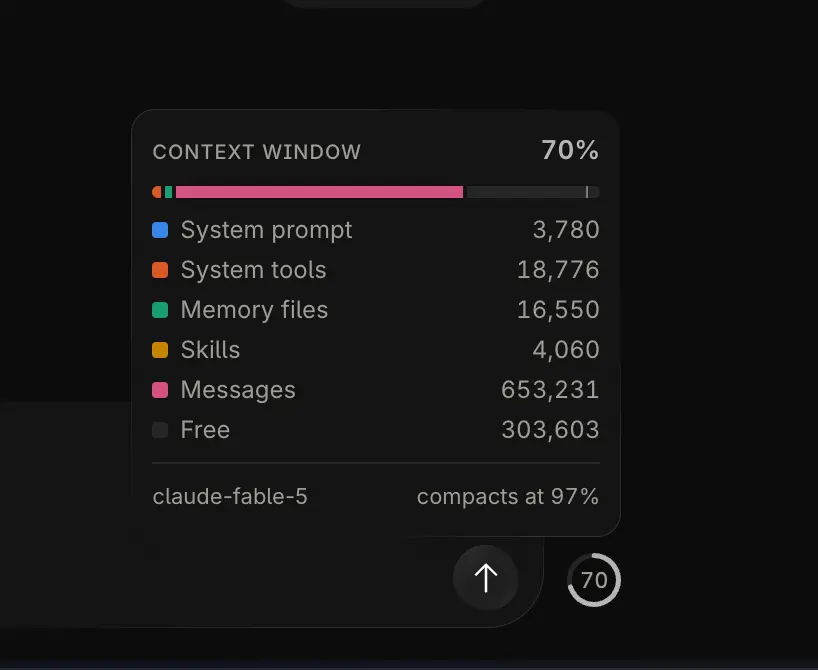
The context meter now shows what is taking up space: messages, tools, skills, memory files, and the system prompt. Hover to see the full breakdown, including free space and the room kept for compaction. The ring changes color as the window fills, making it easier to see when space is getting tight.

The context window breakdown showing tool, memory, buffer, and free space

make the app easier to read

  • Set two text sizes: Adjust the whole interface and code separately, so the sidebar and your diffs can each be comfortable to read.
  • Recognize your space: A space's theme color now appears in the composer and your messages too. You can set a different color for each space.
v0.7

Issues and pull requests, together

0.6 let you edit and ship work alongside an agent. Now the issue that started the work and the pull request it becomes live in Mains too. You can go from triage to merge without leaving the app.

issues and pull requests, together

  • One place to start: The new Tasks screen puts issues and pull requests in two tabs, with search, filters, and details beside the list.
  • See what needs attention: Pull requests show their state, checks, author, and diff size. Filter to reviews requested from you, PRs you've reviewed, or your own work.

Mains fetches pull request details from GitHub when you open them, so you see the current checks and merge status.

review the whole pull request

  • Read everything together: See the description, reviewers, comments, checks, and a file-by-file diff in one view.
  • Comment on the exact line: Start a review thread in the diff, then reply or resolve it from the same spot. Your comments appear on GitHub too.
  • Merge when ready: Choose merge, squash, or rebase. For a draft PR, mark it ready for review instead.

connect GitHub more easily

You can now sign in with GitHub using a one-time code approved in your browser. There is no need to create a personal access token yourself, though the token option is still available.

v0.6

Edit and ship from your workspace

0.5 let you watch an agent work. With 0.6, you can jump in: edit a file, review the diff, and ship the result without leaving the workspace.

edit and ship from one place

  • Make the last fix yourself: Open any file and edit it in Mains. Changes save automatically, and if the file changed elsewhere, you can choose how to resolve it.
  • Commit and open a PR: Commit, push, or open a PR from the same panel as your diff. Mains can draft the commit message, PR title, and description from the changes.

The editor keeps the workspace diff up to date as you save. When you generate a commit message or PR draft, Mains reads the current changes without staging anything for you.

keep track of the whole team

  • See every subagent: A new panel shows what each agent is working on, which tools it used, and what it found. You can see when one is running or done.
  • Pick up where you stopped: Stopping a run stops its active subagents too. Continue the session and their state comes back with it.
  • Follow the plan: A small task indicator shows the current step. Hover to see the full checklist.

find and review changes faster

  • Find the file you need: Search the workspace by name or path and open a result directly. Git-ignored files stay out of your way.
  • Read the diff at a glance: Changed and untracked files have clear status labels. File references in agent output open at the right line.

Open a file from search, a diff, or an agent's reply and it appears in the file tree. You can also send a code selection straight back to the chat when you want the agent to take another look.

v0.5

Your coding agents, together

Mains 0.5 is here — our first stable release. Give a coding agent a task, watch it work, and review what changed, all in one desktop app.

your agents, together

  • Pick the agent for the job: Run GitHub Copilot, Claude Code, OpenAI Codex, or Cursor from the same place.
  • Come back to a conversation: Resume a session later, keep it going, or fork it to try a different approach.
  • Connect your tools: Add MCP servers so agents can work with the APIs and systems your team already uses.

a workspace for each task

  • Keep changes separate: Each task gets a Git-backed workspace with its own diff, so you can see exactly what the agent changed.
  • Start with the issue: Bring in tasks from GitHub, GitLab, Linear, Jira, Asana, or Trello. Add files, diffs, or Sentry errors when the agent needs more context.

see the work before you ship

  • Stay in control: Approve tool requests as they happen, or choose trusted tools ahead of time.
  • Review the result: Inspect the diff, request a code review, and look back at the files, logs, and cost of each run.